Forget "Prompt Engineering" — Build Your Own Skills

“Prompts are everything.” “Prompt engineering is the future.” — Sound familiar?
Writing great prompts still matters, but as AI has shifted toward agentic workflows, a new concept has taken center stage: “skills.”
A skill is an extended, reusable prompt — a template you build once and reuse anytime. It lets you consistently produce complex, repeatable work with a single, simple instruction.
listContentsexpand_more
- 1. Does this sound like you?
- When skills are a perfect fit
- 2. Two types of skills
- 3. Where to find Skills in Claude Desktop
- 4. Build a skill by chatting with Skill Creator
- Where to find it
- The full process — 5 steps
- Skill design: 6 elements that make it great
- 5. Installing skills built by others
- 6. Two ways to use skills
- Natural language → auto-applied
- Direct call with / (most reliable)
- 7. Same idea, different tools: a comparison
1. Does this sound like you?
-
Every time you write a report, you type: “Start with a summary, use a 3-section structure, always cite sources…” — over and over?
-
Every time you translate something, you remind the AI: “Keep technical terms in the original language, use formal tone…”?
-
Every time you tackle a complex task, you spend dozens of iterations tweaking your prompt before it clicks?
That's exactly where skills come in. Build it once, and AI handles the full workflow — start to finish — every time.
In this guide, we'll focus on Claude, the AI that pioneered this concept.
When skills are a perfect fit
-
Maintaining consistent brand voice and tone
-
Documents with fixed formats — reports, training materials, memos
-
Applying glossaries and style guides for translation
-
Dev workflows: code reviews, commit messages, PR descriptions
-
Checklist-based reviews (contracts, QA, compliance, etc.)
The rule of thumb: “If you're giving the same instructions every single time, that's a skill waiting to be built.”
2. Two types of skills
Before you start building, knowing which type you need makes the design process a whole lot easier.
| Capability-boosting | Process-standardizing | |
|---|---|---|
| What it does | Makes AI reliably handle tasks it struggles with or does inconsistently | Locks in a process AI already handles — your way, every time |
| Example | Generating documents in specific formats (PDF layout, PPT structure) | NDA review checklist, weekly status report process |
| Lifespan | May become obsolete as AI models improve | Stays relevant as long as your workflow stays the same |
| Key question | “Does this work fine without the skill?” → If yes, you don't need it | “Does it follow our team's standards accurately?” → Validate quality and refine |
NOTE
KNOW — Why this distinction matters
Capability-boosting skills need regular re-evaluation every time a new AI model is released — ask yourself: “Is this still necessary?”
Process-standardizing skills stay valid as long as your team's workflow doesn't change, but check periodically that they still match how you actually work.
Either way, the quality of a skill improves with real-world testing. It's like any professional skill — the more you refine it, the sharper it gets.
3. Where to find Skills in Claude Desktop
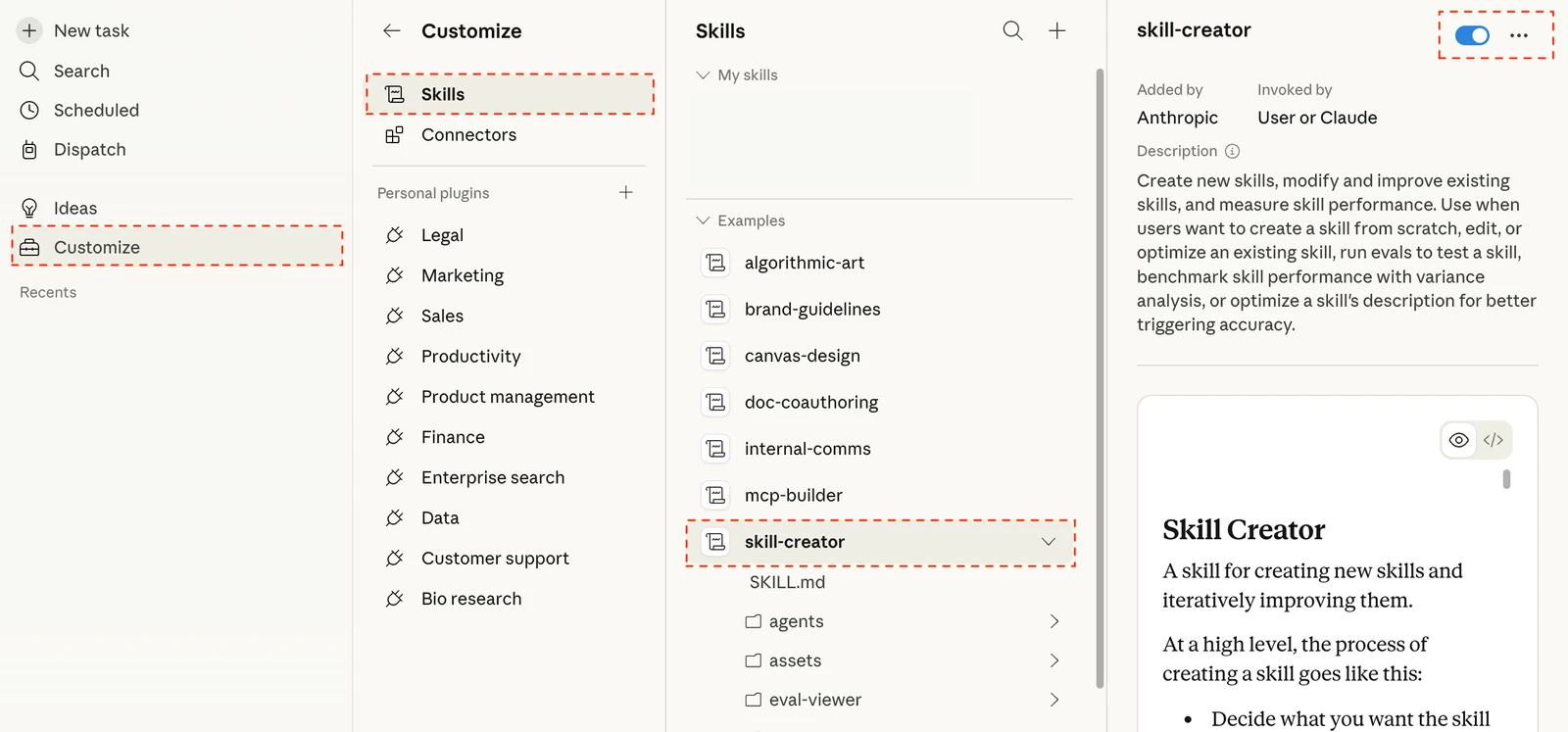
Based on the latest version of Claude Desktop:
-
Click Customize in the left sidebar
-
Click Skills
-
You'll see My Skills and Examples (Claude's built-in skills)
-
Inside Examples, find skill-creator — make sure its toggle is on
4. Build a skill by chatting with Skill Creator
Claude has a built-in skill for building skills. It's called Skill Creator.
No coding required. Just have a conversation with Claude and your skill takes shape.
Where to find it
Go to the Skills screen → Examples and look for skill-creator.
Note: It may not appear on mobile or older versions of Claude Desktop.
The full process — 5 steps
Step 1. Start the conversation
Type something like this in Claude Desktop's chat:
“I want to create a new skill. It's for writing product descriptions for our online store.”
Or type /skill-creator directly in the chat input to launch it.
Step 2. Answer Claude's interview questions
Claude will walk you through a series of questions to design your skill well. Here's an example using a content marketing scenario:
-
What does this skill do? — “Given a topic and a few bullet points, write a LinkedIn post in our brand voice. Professional but conversational, always ending with a question to spark engagement.”
-
When should it activate? — “Whenever I say ‘write a LinkedIn post’ or ‘draft a post about this’”
-
What's the output format? — “① A strong hook (first line that stops the scroll) → ② 3–4 short paragraphs → ③ Key takeaway → ④ A closing question”
-
What should it avoid? — “No buzzwords like ‘game-changer’ or ‘synergy.’ No vague generic advice. No hashtag spam.”
NOTE
Why skills beat one-off prompts
Ask AI to “write a LinkedIn post” with no context and you'll get something different every time — different tone, different structure, different quality.
With a skill, just share the topic and you get your brand's tone, your format, your rules — consistently. A skill is your expertise, encoded so AI can apply it on demand. That's why the initial design is what matters most.
Step 3. Your skill draft is auto-generated
Once the questions are done, Claude automatically writes a skill file (SKILL.md**)**.
Think of it as your recipe — Claude will follow it for every future request.
You don't need to edit the file directly. If you want changes, just tell Claude in chat.
Step 4. Test → Feedback → Refine
Once your skill is ready, put it to the test.
Example: “Write a LinkedIn post about our new product launch” → review the result
Your only job is to review the output and give honest feedback:
-
“The hook is too weak. Make it more attention-grabbing.”
-
“It missed our core differentiator. Always include it.”
-
“The closing question feels forced. Make it more natural.”
Claude revises the skill based on your feedback, then you test again. Repeat until the results feel right.
Step 5. Save & install
When you're satisfied, click “Copy to My Skills” in the right panel — your skill is now officially registered. You can revise and overwrite it at any time by clicking the same button.
Skill design: 6 elements that make it great
When you're answering Skill Creator's questions, think through these 6 elements in advance:
-
Trigger — What request should activate this skill
-
Output — Document, summary, table, checklist, email, etc.
-
Steps — 3–9 clear, sequential steps
-
Do not — What to avoid: guessing, exaggerating, mishandling sensitive data
-
Format — Heading structure, TL;DR, item order, length
-
Example — Even one input/output example dramatically improves consistency
5. Installing skills built by others
Search online and you'll find plenty of skills shared by other users.
You can download them and customize them to fit your needs.
-
Click Customize in the left sidebar of Claude Desktop
-
Click Skills
-
Click the + icon in the top-right corner of the Skills panel
-
Click Upload Skill and select the downloaded file
WARNING
Heads up! Skills from others may not behave as expected in your setup and could carry security risks. Always review the SKILL.md file before installing — make sure you understand exactly what it does before enabling it.
6. Two ways to use skills
Natural language → auto-applied
-
“Turn this into a slide deck outline.”
-
“Summarize this as a weekly update email.”
-
“Format this as a structured PDF report.”
When a skill is enabled, Claude reads your request and automatically applies the relevant skill.
(It matches based on the trigger and description defined when you created it.)
Direct call with / (most reliable)
-
Type
/in chat → choose from your skill list -
Best when auto-detection is ambiguous or you have multiple similar skills
7. Same idea, different tools: a comparison
Claude isn't the only AI with this feature. Every major AI tool has its own take — here's how they stack up.
| Claude Skills | ChatGPT GPTs | Gemini Gems | |
|---|---|---|---|
| Feature name | Skills | GPTs (Custom GPTs) | Gems |
| Core concept | Reusable task recipes (SKILL.md) | Standalone mini-AI apps you can share or sell | Saved role/instruction presets |
| How to build | Conversational (Skill Creator) or write manually | Conversational builder or direct config (Configure tab) | Enter name + instructions on Gemini web |
| File attachments | ✅ Include reference files in the skill folder | ✅ Up to 20 files, 512MB each | ✅ File attachments supported |
| Sharing / marketplace | ❌ Personal use only Some third-party marketplaces exist | ✅ GPT Store — publish, discover, and monetize | ❌ Personal use only |
| External tool integrations | Connect external tools via MCP connectors | Web search, code execution, image generation built in | Deep Google Workspace integration (Docs, Sheets, Slides, etc.) |
| Pricing | Pro plan and above | Plus plan and above (some GPTs usable on free) | Advanced plan and above |
| Strengths | Granular workflow design. Built-in test & feedback loop | Largest ecosystem. Instantly use thousands of GPTs from the Store | Tight Google Workspace integration (Gmail, Docs, Sheets, etc.) |
| Weaknesses | Harder to create and share compared to GPTs | Limited support for multi-step, structured workflows | Complex step-by-step task design is constrained |
TIP
NOW — Try it right now
- Open Claude Desktop → Customize → Skills → Examples → find
skill-creator - Think of one task you repeat constantly. Say: “I want to turn this into a skill.”
- Answer Claude's questions and your first skill will be ready in under 10 minutes.
It doesn't have to be perfect from day one. Test it, refine it, improve it. Skills get sharper the more you use them.